
The Web Client Works – The Desktop App Works Better
Threema Web was built to give you quick access to your messages via a browser. But browser sessions time out. Tabs get closed. And if your phone disconnects from the session, you need to start it all over.
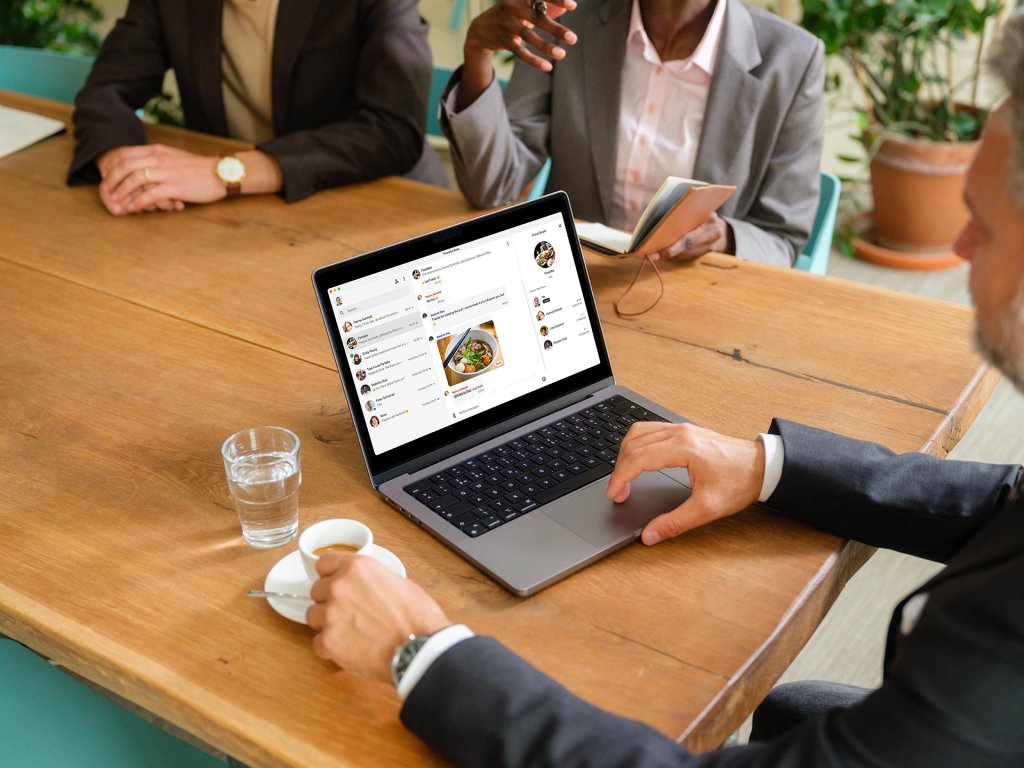
Threema 2.0 for desktop (beta) eliminates these issues. Designed for long (work) sessions, it offers stable performance and a seamless workflow across devices.
Desktop App vs. Web Client
| Comparison | Threema for Desktop | Threema Web |
|---|---|---|
|
Standalone app |
||
|
End-to-end encrypted communication |
||
|
Works without a constant connection to a smartphone |
||
|
No metadata collected |
||
|
Independent of browsers and sessions |
||
|
Secure media and file sharing |
Stability and Reliability
The desktop app runs independently of the browser and keeps your chats available even when your phone is turned off or not connected to the Internet. No more unexpected disconnects, QR rescans, or session timeouts. Just smooth, uninterrupted messaging.
Speed and Performance
The new desktop app has a significantly faster response time. Switching between chats, sharing files, and searching your history feels instant. It’s built for everyday desktop use – not just for the occasional browser session.
Integration
Notifications integrate with your operating system, files can be dragged and dropped right into conversations, and shortcuts boost typing speed. Everything works the way a modern desktop tool should – on Linux, macOS, and Windows.
FAQ
To chat from the computer, you can either use the desktop app or the web client (“Threema Web”).
In both cases, you need the Threema mobile app (for Android or iOS), and your mobile device must be connected to the Internet.
On your computer, either download and open the desktop app or open the web client (with a supported browser)
In the mobile app, select “Desktop/Web,” and activate the scanner:
Android: Main menu > “Settings > Desktop/Web” > “Initiate new session” / QR code symbol
iOS: “Settings” > “Desktop/Web” > camera icon in the top right corner
Use your mobile device to scan the QR code displayed on the computer screen
Hint: To avoid having to scan the QR code each time you (re)start the desktop app / web client, set a session password in the browser before scanning.
With the beta version of Threema 2.0 for desktop, you’re able to chat from the computer even when the mobile device is turned off or not connected to the Internet. Learn more...
Both the desktop app and the web client allow you to use Threema on a desktop computer. You need the mobile app (for Android or iOS) in both cases, and your mobile device must be connected to the Internet.
Learn how to use the desktop app and the web client →
The desktop app is available for macOS, Windows, and Linux. The web client can be used in most web browsers. In terms of features, there’s no difference between desktop app and web client. Since they are based on the same architecture, they also share the following characteristics:
Complete synchronization: By scanning a QR code, computer and mobile device are connected at once, and all conversations are fully accessible on the desktop.
Security and data restraint: All communication between phone and computer is fully end-to-end encrypted. After the session is terminated, all synchronized messages are immediately deleted on the desktop.
Open Source: Like the mobile apps, the desktop app and the web client are open source and use open standards. It’s also possible to host the web client on your own server.
In terms of security, the desktop app offers slight advantages. For one thing, there’s no way for browser plugins to introduce vulnerabilities. For another, it would be even more difficult for attackers to manipulate the app code since it isn’t loaded from a server each session but permanently stored on the user’s end.
For detailed technical information in regard to security, please refer to the Cryptography Whitepaper.
Download the latest version of the desktop app for Windows from the Download page (preferably using a browser other than Microsoft Edge; e.g., Firefox)
Open the downloaded file
The desktop app and the web client currently provide the following features:
Full access to all contacts, media and chats, including past conversations
Send/receive text messages, pictures and media
Send/receive files (send files using drag and drop)
Send/receive emoji
Play animated GIFs
Add contacts
Manage groups and distribution lists






